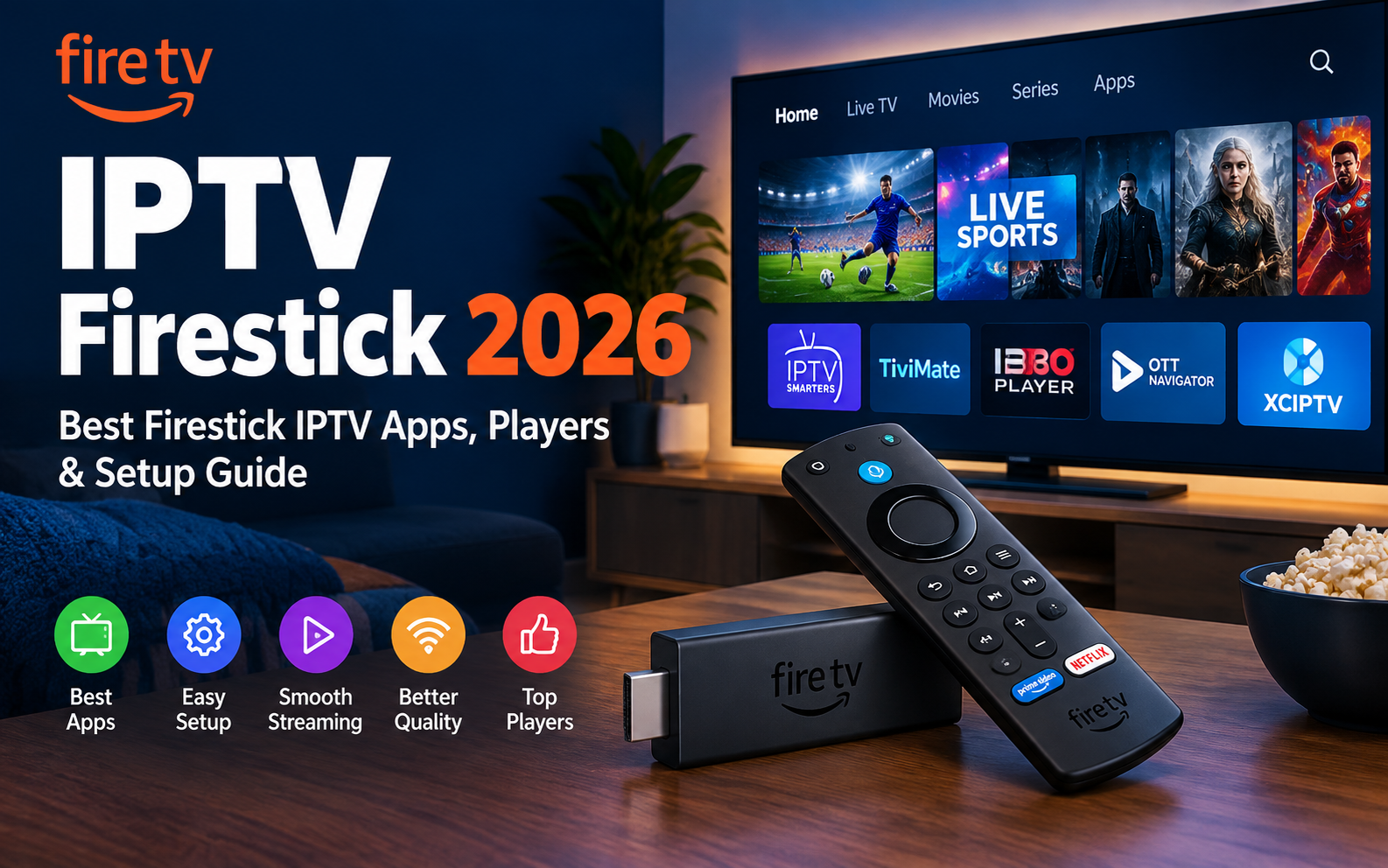
If you’re setting up IPTV Firestick streaming for the first time, you’ll quickly find that the advice online is a mess. One site says use this app, another says that one, half the “Downloader codes” no longer work, and almost nobody explains what actually makes the difference between a Firestick IPTV setup that runs smoothly and one that buffers every Saturday evening.
This guide fixes that.
We’ll cover why the Firestick is still the best device for IPTV in UK homes, which IPTV apps for Firestick are genuinely worth installing, how to set up IPTV Smarters Pro on Firestick properly, what you need to get IPTV on Firestick in the first place, and the handful of tweaks that make the biggest difference to picture quality and stability.
If you’re brand new to IPTV, our main IPTV UK page covers the basics first.
Why Firestick IPTV Is Still the Best Setup for Most UK Homes
There are plenty of devices that can run IPTV. Smart TVs, Android boxes, Apple TV, phones, laptops. So why does Firestick IPTV remain the most popular setup by a wide margin?
It’s cheap. A Fire TV Stick costs a fraction of a dedicated Android box, and it plugs straight into any HDMI port.
It runs every major IPTV player. Fire OS is built on Android, which means the full range of IPTV apps for Firestick is available — TiViMate, IPTV Smarters Pro, IBO Player, OTT Navigator, XCIPTV and more. Samsung and LG Smart TVs only get a fraction of these.
It’s fast enough. The current 4K and 4K Max models switch channels quickly and handle 4K streams comfortably.
It travels. Pack it in a bag, plug it into a hotel or holiday-let TV, and your setup comes with you.
Which Firestick Should You Buy?
| Model | Best For | Our View |
| Fire TV Stick 4K Max | Best overall IPTV experience | Fastest, most storage, best for TiViMate and large channel lists |
| Fire TV Stick 4K | Most households | Excellent value, handles 4K IPTV well |
| Fire TV Stick (HD) | Bedrooms, second TVs | Fine for HD, slower with big playlists |
| Fire TV Stick Lite | Budget only | Works, but noticeably slower — not ideal for heavy use |
One important check before buying: some of Amazon’s newest Fire TV devices run Vega OS rather than the Android-based Fire OS. Vega OS restricts sideloading, which means many IPTV players can’t be installed on it. Before you buy, confirm the model runs Fire OS and supports Apps from Unknown Sources. The 4K and 4K Max models running Fire OS remain the safe choice for IPTV on Firestick.
Best IPTV Apps for Firestick — Compared
The app you choose shapes your whole viewing experience — how the TV guide looks, how quickly channels switch, how easy it is to find what you want. Here’s an honest comparison of the best IPTV apps for Firestick.
| App | Best For | EPG Quality | Ease of Use | Cost |
| TiViMate | Best overall Firestick IPTV player | Excellent | Easy | Free, optional premium |
| IPTV Smarters Pro | Beginners, multi-device users | Good | Very easy | Free |
| IBO Player | Clean, simple interface | Good | Easy | Paid activation after trial |
| OTT Navigator | Older / Lite Firesticks | Good | Moderate | Free, optional premium |
| XCIPTV | Lightweight option | Basic | Easy | Free |
TiViMate
TiViMate is widely regarded as the best IPTV app for Firestick, and for good reason. Its programme guide looks and behaves like a proper Sky-style grid, channel switching is quick, and it handles large playlists without struggling. The free version covers the essentials; the premium tier adds recording, multiple playlists and catch-up controls.
IPTV Smarters Pro
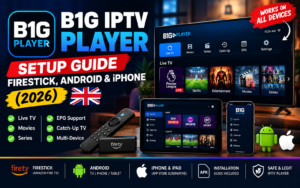
IPTV Smarters Pro for Firestick is the friendliest starting point. The interface is split into clear Live TV, Movies and Series sections, login takes a minute, and the same app runs on Android, iOS and Windows — so your setup feels identical across devices.
IBO Player
IBO Player has a clean, modern interface and is popular with people who want something simple. It uses a device-activation model, so expect a paid licence after the trial period.
OTT Navigator
If you’re on an older Firestick or a Lite model, OTT Navigator is worth trying. It’s lighter on memory than TiViMate and runs more smoothly on lower-powered hardware.
XCIPTV
A no-frills, lightweight IPTV app for Firestick that does the basics well. Good as a backup app if your main player ever misbehaves.
The important point: your IPTV subscription isn’t tied to any one app. The same login works in all of them, so try two or three and keep the one you like best.
Best IPTV Player for Firestick — Our Pick
If we had to recommend one IPTV player for Firestick to most people, it would be TiViMate on a Fire TV Stick 4K Max.
That pairing gives you the fastest channel switching, the best-looking TV guide, and the smoothest handling of large channel lists. For live sport in particular, where you’re jumping between channels, the difference is noticeable.
If you’re a complete beginner, start with IPTV Smarters Pro instead. It’s simpler to set up, and you can always move to TiViMate later — your credentials will work exactly the same.
If you’re using an older or Lite Firestick, OTT Navigator is the best IPTV player for Firestick at that level, because it uses less memory.
How to Install IPTV Smarters Pro on Firestick
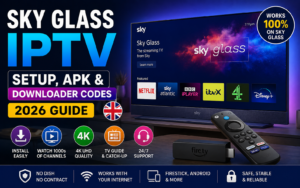
IPTV Smarters Pro isn’t always available directly in the Amazon Appstore, so most people install it using the free Downloader app. Here’s how to install IPTV Smarters Pro on Firestick in a few minutes.
Step 1 — Turn on Developer Options Go to Settings → My Fire TV → About, then select your device name seven times. You’ll see a message confirming Developer Options are now enabled.
Step 2 — Allow apps from unknown sources Go to Settings → My Fire TV → Developer Options and turn on Apps from Unknown Sources (or Install Unknown Apps, then allow it for Downloader).
Step 3 — Install Downloader Search for Downloader in the Amazon Appstore and install it. It’s free and widely used for this purpose.
Step 4 — Download IPTV Smarters Pro Open Downloader and enter the official download URL for IPTV Smarters Pro. Always use the developer’s official source — not a random code from a forum.
Step 5 — Install and open When the download finishes, select Install, then Open.
Step 6 — Log in Choose Login with Xtream Codes API, then enter the server URL, username and password from your IPTV provider.
That’s how to download IPTV Smarters Pro on Firestick and get it running. The same Downloader method works for TiViMate, OTT Navigator and the other IPTV apps for Firestick.
Tip: copy and paste your login details rather than typing them on the remote. They’re case-sensitive, and one wrong character gives you an empty channel list with no error message.
For full screenshots-style steps covering every device, see our IPTV installation guide.
A Note on Downloader Codes
You’ll see “free Firestick IPTV Downloader codes” shared all over the internet. A Downloader code is just a shortcut to a web address — and those addresses change. Old codes frequently point to nothing, or worse, to a modified version of an app.
Our advice: always install from the app developer’s official source at the time you set up. It takes ten seconds longer and removes the risk entirely.
How to Get IPTV on Firestick — What You Actually Need
This is where a lot of first-time setups stall. Installing the app is only half the job.
IPTV apps for Firestick are just players. They don’t include any channels. To actually watch something, you need an IPTV subscription from a provider, who gives you login details to enter into the app.
Here’s the complete checklist for IPTV on Firestick:
- A Fire TV Stick running Fire OS (4K or 4K Max recommended)
- An IPTV player app — TiViMate, IPTV Smarters Pro or similar (free)
- An IPTV subscription — this provides the channels, films and series
- A stable internet connection — 10 Mbps for HD, 25 Mbps for Full HD, 50 Mbps for 4K
Your provider will send login details in one of two formats:
- Xtream Codes API — server URL, username and password. This is the better option because it loads your TV guide, catch-up and on-demand library automatically.
- M3U playlist URL — a single link. Works in almost every app, but the TV guide sometimes needs adding separately.
A good provider gives you both, so you can use any IPTV player on Firestick you like.
Test it on your Firestick first Try the full service free for 24 hours — every channel, the full on-demand library, real 4K quality. No card required.
Choosing the Best IPTV for Firestick
Once your app is sorted, the biggest factor in your experience is the service behind it. The best IPTV for Firestick isn’t the one with the biggest channel number on its homepage — it’s the one that performs when it matters.
Here’s what to check in any IPTV service for Firestick:
- Peak-hour stability — does it hold up at 8pm on a Saturday, or during a Premier League kick-off?
- The channels you actually watch — BBC, ITV, Channel 4, Channel 5, Sky Sports and TNT Sports, not just a big total
- A working TV guide — accurate listings, not “No Information”
- Both Xtream Codes and M3U — so you’re free to use any IPTV app for Firestick
- Real support — someone who replies when something stops working
- A free trial — so you can test on your own Firestick before paying
We’ve written a full breakdown of how to judge IPTV service providers for Firestick and every other device, including the red flags worth avoiding.
Why IPTV UK Official Works Well on Firestick
Our service is built for UK viewers and tested specifically on Firestick devices:
- 30,000+ live channels including the full UK lineup
- Every Sky Sports and TNT Sports channel, plus PPV events included
- 150,000+ films and series, updated weekly
- Full EPG with catch-up on major UK channels
- Xtream Codes and M3U both supplied — works in TiViMate, IPTV Smarters Pro, IBO Player and more
- 4K, Full HD and HD streaming
- 24/7 support with help setting up your Firestick
- One-time payment, no auto-billing
If football is the main reason you’re setting up IPTV on Firestick, our guide to IPTV for the Premier League covers exactly what’s included.
Ready to set up your Firestick IPTV? UK IPTV subscription plans from £12.99 — one-time payment, instant activation, and full setup support for Firestick.
For a deeper look at what separates a strong service from an average one, see our guide to the best IPTV service UK viewers can choose.
How to Speed Up IPTV on Firestick
Most Firestick IPTV problems aren’t caused by the service — they’re caused by the Firestick itself or the home network. These fixes make the biggest difference.
Use Ethernet Instead of Wi-Fi
This is the single most effective change you can make. Wi-Fi drops packets — through walls, from neighbours’ networks, from distance to the router — and live TV shows every one of them as a stutter. A low-cost Ethernet adapter for Firestick removes the problem almost completely.
Clear the App Cache Regularly
Go to Settings → Applications → Manage Installed Applications, select your IPTV app, then choose Clear cache. Doing this every few weeks keeps the app responsive.
Free Up Storage
Firesticks have limited storage, and a nearly full one slows down noticeably. Uninstall apps you don’t use, and avoid keeping several IPTV players installed at once if space is tight.
Restart Your Firestick Weekly
Hold Select + Play/Pause on the remote for five seconds. A weekly restart clears memory and fixes a surprising number of small issues.
Increase the Buffer Size
In TiViMate, go to Settings → Player → Buffer size and set it to 5–10 seconds if you’re on Wi-Fi. This absorbs small connection drops before they become visible.
Turn Off Data Monitoring and Usage Collection
In Settings → Preferences → Data Monitoring, turn it off. Also switch off app usage data collection under Privacy Settings. Fewer background processes means more resources for streaming.
Upgrade Old Hardware
If you’re on a Fire TV Stick Lite or an older model, upgrading to a 4K Max is the biggest performance jump you can buy for IPTV on Firestick.
Troubleshooting Firestick IPTV
The App Won’t Install
Apps from Unknown Sources (or Install Unknown Apps for Downloader) is almost certainly still turned off. Go back to Developer Options and enable it.
“Invalid Credentials” or Login Fails
Copy and paste your details rather than typing. Check the server URL includes http:// and the port number. Confirm your subscription is active.
Channels Load but the TV Guide Is Empty
With Xtream Codes, the guide usually fills within a few minutes. With M3U, add the separate EPG link your provider gave you, then refresh the guide in your app’s settings.
Buffering During Live Sport
Switch to Ethernet first. Then raise the buffer size, close background apps and restart the Firestick. If it’s only bad at peak evening times, your broadband provider may be throttling streaming traffic.
The App Keeps Crashing
Clear the cache, restart the Firestick, and check free storage. On older or Lite models, try OTT Navigator instead — it’s lighter.
Developer Options Is Missing
Go to Settings → My Fire TV → About and select your device name seven times. If it still doesn’t appear, your device may run Vega OS, which doesn’t support sideloading IPTV apps.
Still stuck? Our team can walk you through it — contact our support team.
IPTV Firestick FAQ
What is the best IPTV app for Firestick?
TiViMate is widely considered the best IPTV app for Firestick because of its excellent TV guide and fast channel switching. IPTV Smarters Pro is the best choice for beginners.
How do I get IPTV on Firestick?
Enable Apps from Unknown Sources, install Downloader, use it to install an IPTV player such as IPTV Smarters Pro or TiViMate, then log in with the credentials from your IPTV subscription.
Is IPTV Smarters Pro available on Firestick?
Yes. It’s usually installed using the Downloader app from the developer’s official source, because availability in the Amazon Appstore varies.
How do I install IPTV Smarters Pro on Firestick?
Turn on Developer Options, allow unknown sources, install Downloader from the Appstore, download IPTV Smarters Pro from its official source, install it, then log in with Xtream Codes API.
What is the best IPTV player for Firestick?
TiViMate on a Fire TV Stick 4K Max gives the best overall experience. On older or Lite Firesticks, OTT Navigator runs more smoothly.
What is the best IPTV for Firestick?
The best IPTV for Firestick is a service with stable peak-hour performance, the full UK channel lineup, a working TV guide, both Xtream Codes and M3U support, and a free trial so you can test before paying.
Do IPTV apps for Firestick include channels?
No. IPTV apps for Firestick are players only. Channels come from your IPTV subscription, which gives you the login details to enter into the app.
Which Firestick is best for IPTV?
The Fire TV Stick 4K Max is the best Firestick for IPTV. The standard 4K model is excellent value. Check any new model runs Fire OS rather than Vega OS, as Vega OS restricts sideloading.
Can I use IPTV on a Firestick Lite?
Yes, but it’s slower with large channel lists. Use a lightweight player such as OTT Navigator for the smoothest experience.
Are Firestick IPTV Downloader codes safe?
Only if they come from the app developer’s official source. Codes shared on forums can go out of date or point to modified apps, so it’s safer to use the official download link.
Is there a free IPTV player for Firestick?
Yes. IPTV Smarters Pro, XCIPTV and the free versions of TiViMate and OTT Navigator are all free IPTV players for Firestick. The channels themselves come from your subscription.
Why does IPTV buffer on my Firestick?
Usually Wi-Fi or low device memory. Switch to Ethernet, clear the app cache, increase the buffer size and restart the Firestick weekly.
What internet speed do I need for IPTV on Firestick?
Around 10 Mbps for HD, 25 Mbps for Full HD and 50 Mbps for 4K. Test your speed during the evening for a realistic figure.
Can I use the same IPTV subscription in different Firestick apps?
Yes. Your login works in any compatible IPTV app for Firestick, so you can switch between TiViMate, IPTV Smarters Pro and others freely.
Does Firestick IPTV work in 4K?
Yes, with a Fire TV Stick 4K or 4K Max, a 4K-capable service and a connection of around 50 Mbps.
Is IPTV on Firestick legal in the UK?
IPTV technology and the Firestick itself are completely legal. Legality depends on whether the service holds the proper rights for the content it provides, so choose providers that operate within the law.
How do I clear the cache on my Firestick IPTV app?
Go to Settings → Applications → Manage Installed Applications, select your IPTV app, then choose Clear cache.
Can I try IPTV on my Firestick before paying?
Yes. Our 24-hour free trial lets you test the full service on your own Firestick with no card details needed.
Get Your Firestick IPTV Set Up Today
The right IPTV Firestick setup comes down to three things: a Fire OS Firestick (4K or 4K Max ideally), a good IPTV player like TiViMate or IPTV Smarters Pro, and a reliable service behind it.
The first two take ten minutes. The third is what decides whether you’re still happy in six months — so test before you commit.