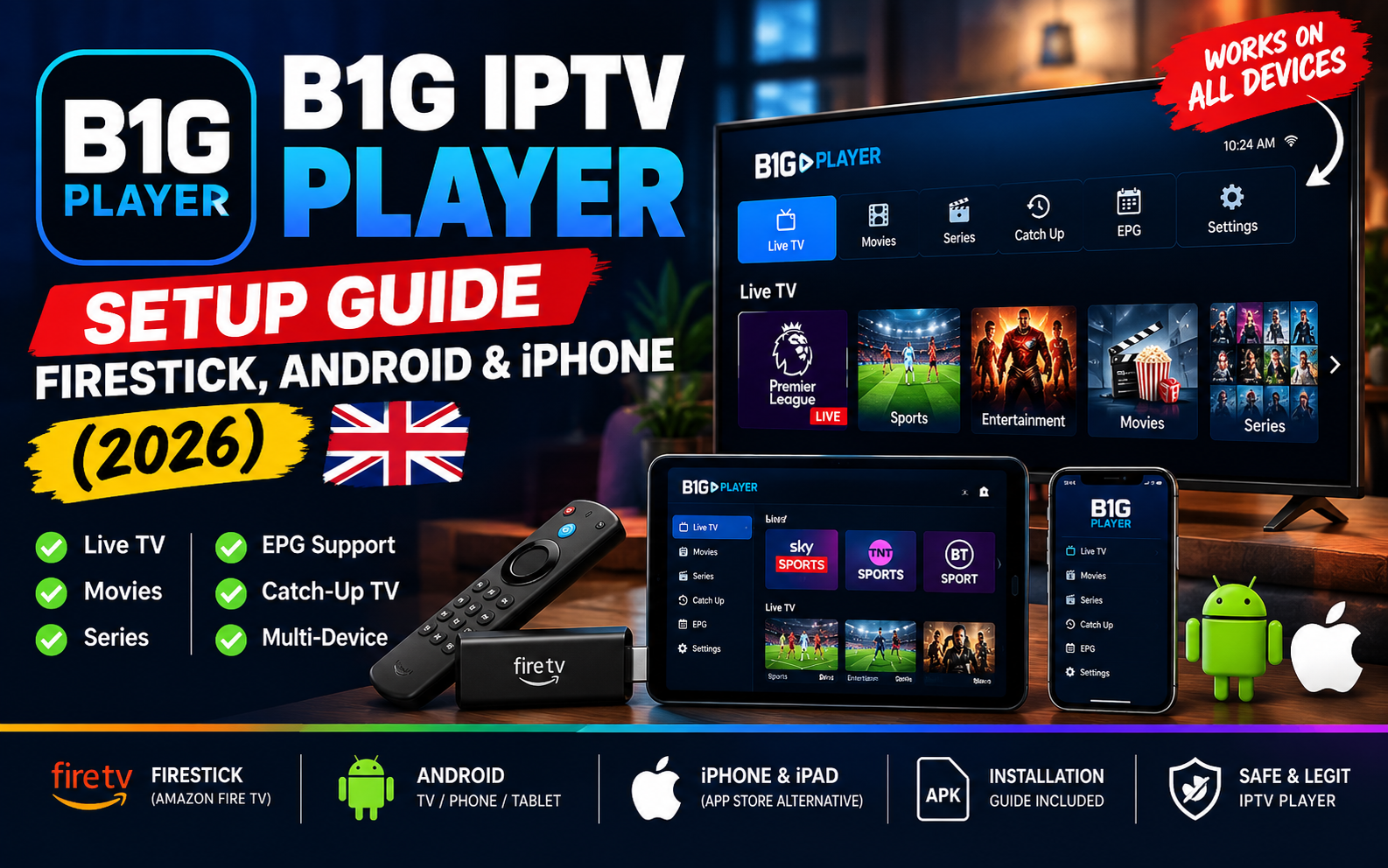
If you’ve been searching for the B1G IPTV player, you’ve probably run into a fair bit of confusion — half the results talk about it like it’s a TV service you subscribe to, the other half like it’s an app you download. Which is it?
Here’s the straight answer: B1G Player is an app. It’s a free IPTV player, in the same family as TiViMate and IPTV Smarters Pro. It doesn’t come with channels of its own. What it does is take login details from an IPTV provider and turn them into a proper TV interface — channel list, programme guide, on-demand library, the lot.
That distinction matters, because it means B1G Player works with whichever provider you choose. You’re not locked into anything.
This guide covers what the app actually is, how to install it on Firestick, Android and iPhone, what credentials you’ll need to make it work, and how to fix the handful of things that commonly go wrong.
H2: What Is B1G Player?
B1G Player is a free IPTV player application designed to stream live TV channels, movies, series and catch-up content on supported devices.
Think of it like a music player on your phone. The player is the software; the music is separate. B1G Player is the software — it gives you the interface, the channel grid, the EPG and the playback engine. Your IPTV subscription supplies what actually plays inside it.
What the B1G player app gives you:
- A clean, TV-friendly interface built for remote control navigation
- Full EPG (Electronic Programme Guide) support with 7-day listings
- Live TV, Movies and Series organised into separate sections
- Catch-up support, where your provider offers it
- Xtream Codes API and M3U playlist compatibility
- Favourites, so you’re not scrolling through thousands of channels every evening
What it doesn’t give you: channels. No IPTV player app does. That’s what a subscription is for — and we’ll come back to that shortly.
H2: B1G IPTV APK — What to Know Before You Download
The B1G IPTV APK is simply the installer file for Android-based devices. Firestick, Android TV boxes, Android phones and tablets all use APK files to install apps that aren’t in their official store.
A few things worth understanding before you go looking for one.
H3: Where the App Actually Lives
Some IPTV player apps are available directly in the Amazon Appstore or Google Play. Others have to be sideloaded — installed manually from a file — because app store policies are inconsistent about IPTV players.
Always get the APK from the developer’s official source. Random APK mirror sites are one of the more common ways people end up with modified software on a device that sits on their home network.
H3: Why Downloader Codes Change
You’ll see “Downloader codes” mentioned everywhere — short numeric codes you type into the Downloader app instead of a long URL. These codes point at whatever file the developer has hosted at that moment, which means they change regularly and codes published on forums six months ago frequently point at nothing, or worse, at something that isn’t the original app.
Our advice: get the current install link from the official source at the time you install, rather than trusting an old code.
H3: A Note on iOS
APK files are an Android thing. iPhones and iPads cannot install APK files at all — Apple’s system simply doesn’t accept them. iOS users need an App Store alternative, which we cover further down.
H2: How to Install B1G Player on Firestick
Firestick is comfortably the most popular device for this setup in UK homes, and the process takes under ten minutes.
Step 1 — Enable sideloading Go to Settings → My Fire TV → Developer Options and turn on Apps from Unknown Sources. Without this, nothing will install and Fire OS won’t tell you why.
(On some newer Fire TV devices, Developer Options is hidden. If you don’t see it, go to Settings → My Fire TV → About and click your device name seven times — it’ll appear.)
Step 2 — Install Downloader Search for Downloader in the Amazon Appstore and install it. It’s free, it’s legitimate, and it’s the standard tool for sideloading on Fire TV.
Step 3 — Get the install file Open Downloader, enter the official download URL for the B1G player app, and let it download.
Step 4 — Install When the download finishes, Fire OS will ask if you want to install. Select Install, then Open.
Step 5 — Log in The app will ask for your IPTV credentials. Choose the Xtream Codes API option and enter your server URL, username and password exactly as your provider sent them.
Step 6 — Wait for the channel list The app pulls your full channel list and EPG from the server. Depending on list size, this takes anywhere from ten seconds to a minute.
💡 Tip: Copy and paste your credentials rather than typing them on a remote. They’re case-sensitive, and one wrong character produces an empty channel list with no error explaining why. This single habit prevents most failed setups we hear about.
Full step-by-step instructions for every device are in our installation guide.
Don’t have credentials yet? Test a full IPTV service free for 24 hours on your Firestick — every channel, complete VOD library, real 4K. No card required.
H2: B1G Player for Android — Phones, Tablets and TV Boxes
Android is the platform the app was built for, so this is the most straightforward setup of the three.
On Android TV boxes and Google TV (Nvidia Shield, Formuler, Chromecast with Google TV):
- Check the Google Play Store first — if the app is listed there, install it directly and skip the sideloading entirely
- If not listed, enable Install unknown apps for your browser or file manager in Settings → Apps → Special access
- Download the APK from the official source
- Open the downloaded file and confirm installation
- Launch the app and log in with your Xtream Codes credentials
On Android phones and tablets:
Same process, with one addition — Android will warn you when installing from outside Play Store. That warning is normal for sideloaded apps, but only proceed if you’re confident about where the file came from.
Worth knowing: if your Android box has an Ethernet port, use it. B1G player for Android performs noticeably better on a wired connection, particularly during live sport, when Wi-Fi packet loss shows up immediately as stuttering.
H2: B1G Player for iPhone and iPad — The Honest Position
This is where we have to be straight with you rather than give you the answer you might be hoping for.
Apple does not allow APK sideloading. iOS is a closed system, and unlike Android there is no equivalent “unknown sources” setting. If an app isn’t in the App Store, you can’t simply install it on a standard iPhone or iPad.
So what are your actual options on iOS?
Check the App Store first. Availability of IPTV player apps on iOS changes frequently as Apple’s policies shift. Search for it — if it’s there, install it normally.
Use an alternative iOS player. Several well-established IPTV players are available on the App Store and work with the same Xtream Codes or M3U credentials. GSE Smart IPTV and IPTV Smarters Pro are the two most widely used. Your subscription details work identically in any of them — the credentials aren’t tied to a particular app.
Use AirPlay or a connected device. If you’re set on a specific app that’s only on Android, a cheap Firestick or Android box connected to your TV is the simpler route than trying to force it onto an iPhone.
You’ll see websites claiming to offer B1G player for iPhone via unofficial installers. We’d suggest avoiding those — they typically involve enterprise certificates that break every few weeks, and often require handing over your Apple ID.
H2: What Credentials Do You Need to Use B1G Player?
This is the part most guides skip over, and it’s the part that actually stops people from getting the app working.
The app is free. The channels are not. To make any IPTV player function, you need an active subscription from a provider, who sends you login details in one of two formats.
H3: Xtream Codes API (recommended)
Three pieces of information:
- Server URL — something like http://yourserver.com:8080
- Username
- Password
This is the better option because it loads your EPG, catch-up and on-demand library automatically, with no additional configuration.
H3: M3U Playlist URL
A single link ending in .m3u or .m3u8. It works in almost every player app, but the programme guide sometimes needs a separate XMLTV link added manually.
Any decent provider gives you both, so you’re never locked to one app or one method.
🔴 CTA 2 — Ready to get watching? UK IPTV subscription plans from £12.99 — 30,000+ channels, all Sky Sports and TNT Sports, full EPG, and both Xtream Codes and M3U included. One-time payment, no auto-billing.
H2: B1G Player vs B1G IPTV Subscription — Clearing Up the Confusion
Search results for these terms mix two completely different things together, so let’s separate them properly.
| B1G Player (the app) | A B1G IPTV subscription (a service) | |
| What it is | Free player software | A paid channel subscription |
| What it provides | Interface, EPG, playback | The actual channels and content |
| Cost | Free | Monthly or annual fee |
| Can you use it alone? | No — needs credentials | Yes — works in any compatible player |
| Locked together? | No | No |
The key point: the app and the subscription are independent. You can use B1G Player with credentials from any provider, and you can use your subscription in any compatible player — TiViMate, IPTV Smarters Pro, GSE Smart IPTV or B1G Player.
And what about “B1G IPTV panel”? A panel, in IPTV terminology, is a reseller dashboard — the back-end system resellers use to create and manage customer subscriptions. It’s not something a normal viewer needs or uses. If you’re interested in that side of things, our reseller panel page explains how it works.
So if you’re a UK viewer weighing this up: choose your provider on service quality, and choose your app on which interface you prefer. They’re separate decisions.
For a proper breakdown of what actually separates providers, see our guide to the best IPTV service UK viewers can choose.
Troubleshooting — Common B1G Player Problems
Almost every issue falls into one of these five.
“Invalid credentials” or login fails
- Copy and paste rather than typing — credentials are case-sensitive
- Check the server URL includes http:// and the port number
- Confirm your subscription is still active and hasn’t expired
- Make sure you haven’t exceeded your plan’s simultaneous connection limit
Channels load but the TV guide is empty
- With Xtream Codes, the EPG usually populates within a few minutes — give it time on a large channel list
- With M3U, you likely need to add the separate XMLTV EPG URL your provider supplied
- Force an EPG refresh in the app’s settings
Buffering during live sport
- Switch from Wi-Fi to a wired Ethernet connection — this alone resolves most cases
- Increase the buffer setting in the app if one is available
- Test at a quieter time; if it’s smooth at midnight but stutters at 8pm, your broadband provider may be throttling streaming traffic
- Close background apps that are consuming bandwidth
The app won’t install
- On Firestick: Apps from Unknown Sources is almost certainly still switched off
- On Android: check Install unknown apps permission for whichever app is doing the downloading
- On iPhone: it won’t — APKs don’t work on iOS. Use an App Store alternative
App crashes or runs slowly
- Restart the device to clear memory
- Clear the app’s cache in device settings
- On older, lower-powered sticks, a lighter player app may simply run better
- Uninstall and reinstall if problems persist after clearing cache
Still stuck? Our support team helps with setup on any device, whichever player you’re using — get in touch.
H2: FAQ — B1G IPTV Player Questions Answered
Q1: What is B1G Player?
B1G Player is a free IPTV player app that lets you watch live TV, movies and series on Firestick, Android and other devices. It doesn’t include channels — you supply those through a subscription from an IPTV provider.
Q2: Is B1G Player free?
The app itself is free. What costs money is the IPTV subscription that provides the actual channels, which is separate from the app.
Q3: Does B1G Player work with any IPTV provider?
Yes. It accepts standard Xtream Codes API and M3U playlist credentials, which virtually every provider issues. You’re not tied to one service.
Q4: How do I install the B1G IPTV APK on Firestick?
Enable Apps from Unknown Sources in Developer Options, install the Downloader app from the Amazon Appstore, use it to download the APK from the official source, then install and log in with your credentials.
Q5: Can I get B1G Player for iPhone?
APK files don’t work on iOS. Check whether the app is listed on the App Store; if not, use an App Store alternative such as GSE Smart IPTV or IPTV Smarters Pro with the same credentials.
Q6: What’s the difference between B1G Player and a B1G IPTV subscription?
The player is free software providing the interface. A subscription is a paid service providing the channels. They’re independent — either can be used with alternatives.
Q7: What is a B1G IPTV panel?
A panel is a reseller dashboard used to create and manage customer subscriptions. It’s a tool for people selling IPTV, not for regular viewers.
Q8: Do I need a Downloader code to install it?
Not necessarily. A Downloader code is just a shortcut for a long URL. You can enter the full official download URL instead — which is more reliable, since codes change frequently.
Q9: Why won’t my channels load after logging in?
Usually a credentials issue. Re-enter them by copy-paste rather than typing, check your subscription hasn’t expired, and confirm you’re not exceeding your plan’s connection limit.
Q10: Is B1G Player available on Google Play?
Availability of IPTV player apps in official stores changes regularly. Check the Play Store first — if it’s listed, that’s the safest and simplest route.
Q11: What internet speed do I need?
Around 10 Mbps for HD, 25 Mbps for Full HD and 50 Mbps for 4K. Test during peak evening hours rather than mid-morning for a realistic figure.
Q12: Can I use B1G Player on multiple devices?
You can install the app on as many devices as you like — it’s free. How many can stream at the same time depends on the connections included in your subscription plan.
Q13: Does B1G Player support catch-up TV?
Yes, where your provider offers catch-up. The app displays it, but the content comes from the provider’s servers — so this depends on your subscription rather than the app.
Q14: Is B1G Player better than TiViMate or IPTV Smarters Pro?
They’re all capable players with different interfaces. TiViMate is often preferred for its EPG on Android TV, IPTV Smarters Pro for cross-platform coverage. Try a couple — since they’re free and use the same credentials, switching costs you nothing.
Q15: How do I get IPTV credentials to use with the app?
You need a subscription from an IPTV provider. Most send credentials by email within minutes of ordering. You can test ours free for 24 hours before paying anything.
H2: Getting Set Up — The Short Version
B1G Player is a solid, free IPTV player app. Install it on your Firestick or Android device, log in with Xtream Codes credentials, and you’ll have a proper TV interface with a full programme guide in under ten minutes.
The app isn’t the hard part though. The part that actually determines your experience is the subscription behind it — whether the streams hold up at 8pm on a Saturday, whether your channels are all there, whether the EPG is accurate, and whether anyone answers when something breaks.
Choose your app on preference. Choose your provider carefully.
→ https://iptvukofficial.com/iptv-free-trial/ | View Subscription Plans → https://iptvukofficial.com/iptv-subscription-uk/
If you’re new to all this, our main IPTV UK page covers the basics of how it all fits together.