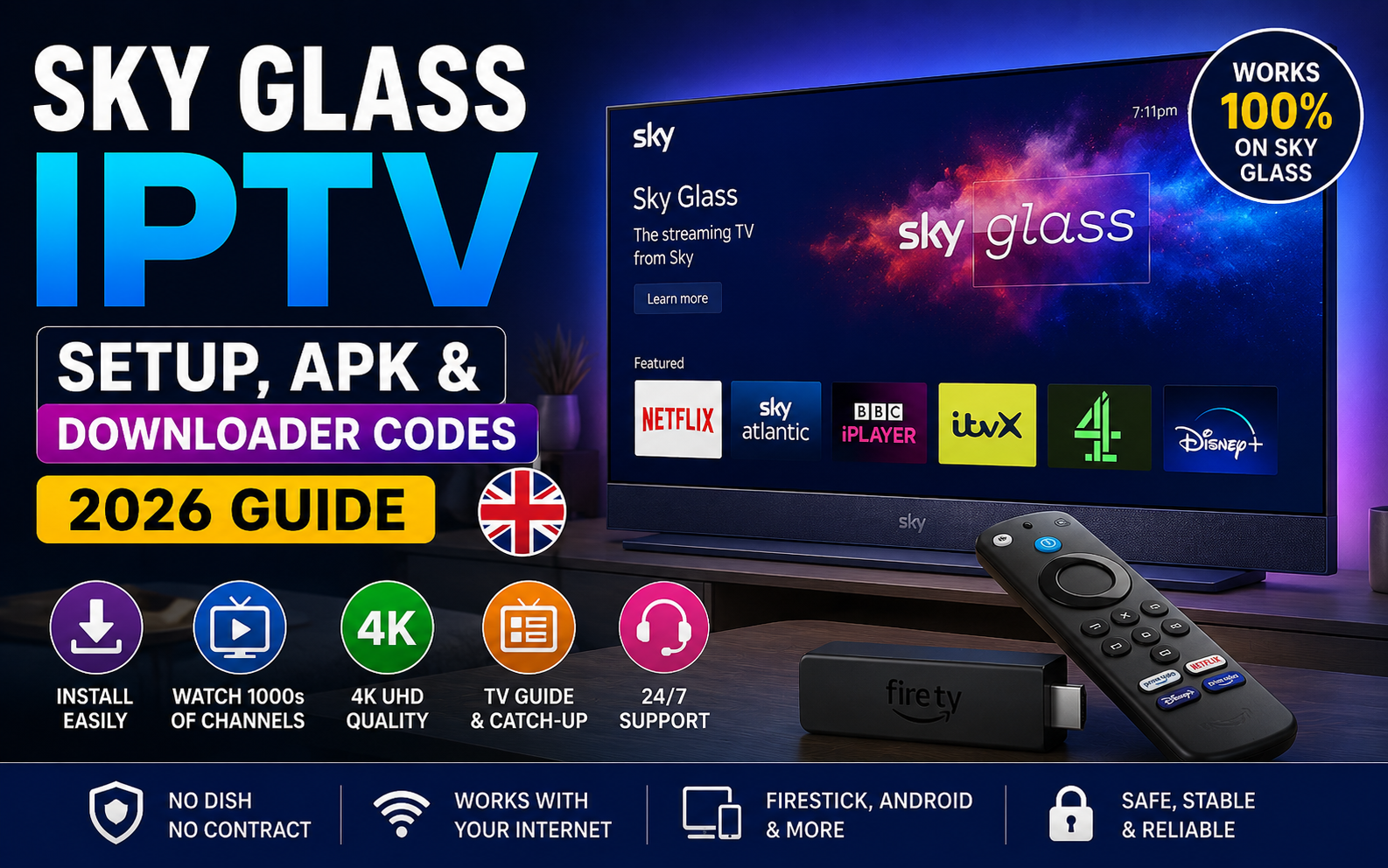
If you own a Sky Glass and you’ve been searching for Sky Glass IPTV, you’ve probably already found a dozen sites telling you to “download the APK” or “enter this Downloader code.” And you’ve probably also discovered that none of it seems to work on your actual TV.
There’s a reason for that, and nobody seems willing to say it plainly.
The short version: you cannot install IPTV apps directly onto Sky Glass. It doesn’t run Android, there’s no app store you can sideload into, and no Downloader code will change that. But you absolutely can watch IPTV on your Sky Glass — it just takes one small extra piece of kit that costs around £40.
This guide covers exactly how, what the APK and Downloader code searches are really about, and — for anyone weighing up the cost — what you’d genuinely save by keeping the TV and dropping the Sky package.
H2: What Is Sky Glass, Exactly?
Worth a quick recap, because Sky Glass is a slightly unusual product.
Sky Glass is Sky’s own 4K smart TV with everything built in — no dish, no separate box, no cables trailing across the room. The current Gen 2 range includes Quantum Dot and Mini-LED panels with a seven-driver Dolby Atmos sound system built into the frame, which is genuinely impressive for an all-in-one TV.
Current UK pricing (2026):
| Size | One-Off Price | On 48-Month Contract |
| 43″ | £699 | £14/month + £20 upfront |
| 55″ | £949 | £19/month + £20 upfront |
| 65″ | £1,199 | £24/month + £20 upfront |
Here’s the part that catches people out though: Sky Glass requires a Sky TV subscription to function properly. Packages start around £15/month for Sky Essential, and climb steeply once you add Sky Sports, Sky Cinema or Netflix.
So the true cost isn’t the TV price — it’s the TV price plus an ongoing monthly subscription for as long as you own it.
H2: Can You Install IPTV Apps Directly on Sky Glass?
No. And it’s worth understanding why, so you don’t waste an evening trying.
Sky Glass runs Sky’s own Entertainment OS — a closed, custom operating system built specifically for Sky’s ecosystem. It is not Android TV, not Google TV, and not Fire OS.
What that means practically:
- There’s no “Apps from Unknown Sources” setting to enable
- There’s no Downloader app available on the platform
- You can’t sideload an APK, because the OS doesn’t accept them
- The app selection is curated by Sky — you get what Sky puts there, and IPTV player apps aren’t on the list
Anyone telling you to “install the Sky Glass IPTV APK directly on your TV” either hasn’t tried it, or is describing a completely different device and hoping you won’t notice.
The good news: this doesn’t stop you at all. Sky Glass has HDMI inputs, exactly like any other television. And that’s the entire solution.
H2: The Method That Actually Works
Here’s the approach that genuinely works, used by thousands of Sky Glass owners in the UK.
You plug a streaming device into your Sky Glass HDMI port, and run IPTV from that device.
Your Sky Glass becomes the screen and the speakers — which, given how good its panel and Dolby Atmos system are, is exactly what you want it doing. The streaming stick handles the app side.
H3: What Device Should You Use?
Amazon Firestick 4K (~£40–£55) — the default recommendation for most people. Cheap, tiny, supports every major IPTV app, and pairs excellently with TiViMate.
Android TV Box (Nvidia Shield, Formuler) — more powerful, usually with a built-in Ethernet port for a more stable connection. Costs more but gives the smoothest possible experience.
Any Android-based stick or box will work. The key requirement is simply that it runs Android or Fire OS, so it can install IPTV apps.
H3: The Setup, Step by Step
- Plug your Firestick into a spare HDMI port on the back of your Sky Glass
- Switch your Sky Glass to that HDMI input using the input/source button on the remote
- On the Firestick, go to Settings → My Fire TV → Developer Options and turn on Apps from Unknown Sources
- Install the Downloader app from the Amazon Appstore
- Use Downloader to install your IPTV player — IPTV Smarters Pro or TiViMate are the usual choices
- Open the app and enter your login credentials — server URL, username and password (Xtream Codes), or your M3U link
- Your channel list loads and you’re watching, in full 4K on your Sky Glass panel
The whole process takes around 8–10 minutes.
You’ll need login credentials from an IPTV UK service before you start — that’s what the app actually connects to. Full device-by-device instructions are in our installation guide.
Need IPTV credentials for your setup? Test the full service free for 24 hours on your Firestick before buying anything. No card required.
H2: What You Need — The Complete Checklist
Four things, and you probably already have two of them.
1. Your Sky Glass TV ✅ — already sorted, and it’s the best part of the setup. That Mini-LED panel and Dolby Atmos system will make IPTV content look and sound excellent.
2. A UK IPTV subscription — this provides the actual channels. Plans typically run £12–£55 depending on length.
3. A streaming device — Firestick 4K (~£40), Android TV box, or anything similar with an HDMI connector.
4. An IPTV player app — free. IPTV Smarters Pro, TiViMate or GSE Smart IPTV, depending on your device.
Total one-off outlay if you already own the TV: around £40 for the stick, plus your subscription.
What you don’t need: a dish, an engineer visit, a new TV, or any modification to your Sky Glass whatsoever. You’re simply using an HDMI input, exactly as it was designed to be used.
H2: Sky Glass IPTV APK — What People Are Actually Searching For
“Sky Glass IPTV APK” is one of the most searched terms in this whole topic, so let’s clear up what’s genuinely going on.
An APK is an Android application file. It’s how apps get installed on Android devices — phones, tablets, Android TV boxes, and Fire TV sticks.
Since Sky Glass doesn’t run Android, no APK will install on it. Full stop.
So when people search for a Sky Glass IPTV APK, they’re really looking for one of two things:
Either: an IPTV app to install on the streaming device they’ll plug into their Sky Glass. In which case, the answer is any standard IPTV player — IPTV Smarters Pro, TiViMate, GSE Smart IPTV. These are legitimate, widely-used apps available through normal channels.
Or: they’ve seen a service marketing itself under the “Sky Glass IPTV” name. Worth knowing: Sky Glass is Sky’s registered product, and services using that name are not affiliated with Sky in any way. That doesn’t automatically make them bad, but it does mean you should evaluate them on their own merits rather than assuming any connection to Sky.
Practical advice: stick to well-known player apps and choose your IPTV service on the criteria that actually matter — server stability at peak times, channel coverage, EPG accuracy and support responsiveness.
H2: Sky Glass IPTV Downloader Codes Explained
Another commonly searched phrase, and again there’s a simple explanation.
Downloader is a free app (by AFTVnews) available on the Amazon Appstore. It lets you install apps from a direct URL rather than through an app store. To save people typing long web addresses on a TV remote, apps often publish a short numeric Downloader code instead.
Where Downloader codes work: Firestick, Fire TV Cube, Android TV boxes.
Where they don’t work: Sky Glass, Samsung Tizen TVs, LG webOS TVs, Apple TV, or any non-Android platform.
So a “Sky Glass IPTV Downloader code” is really a Firestick Downloader code — used on the stick you plug into your Sky Glass, never on the TV itself.
How to use one properly:
- Install Downloader from the Amazon Appstore on your Firestick
- Enable Apps from Unknown Sources in Developer Options first, or the install will silently fail
- Open Downloader and enter the code or URL in the box
- Wait for the download, then select Install
- Open the app and enter your IPTV credentials
One safety note worth taking seriously: only use Downloader codes from sources you actually trust. You’re installing software directly onto a device on your home network, bypassing app store checks. Random codes found on forums are a genuine security risk.
H2: Sky Glass + Sky TV vs Sky Glass + IPTV — The Real Cost
This is the section most Sky Glass owners find most useful, because until you see the numbers side by side, it’s easy to underestimate what the Sky package actually costs over a year.
| Sky Glass + Sky TV | Sky Glass + IPTV | |
| TV | £949 (55″ Gen 2) | £949 (the same TV) |
| Monthly TV service | £15 – £75/month | ~£4.16/month |
| Sky Sports + Cinema | +£40/month approx | Included |
| PPV boxing events | £24.95 each | Included |
| Contract | 18 months minimum | None |
| Channels | ~300 curated | 30,000+ |
| Extra hardware | None | Firestick ~£40 one-off |
| Annual service cost | ~£900 | ~£50 |
The gap is around £850 a year — and that’s before counting PPV events, which alone can add £100+ annually if you follow boxing or UFC.
The important point: you keep the TV. Nobody’s suggesting you replace a £949 television. Sky Glass is genuinely good hardware — a strong panel, excellent built-in sound, clean design. This is only about what you feed into it.
Swap the Sky package for an IPTV subscription UK and that £900 a year drops to roughly £50, on the same screen you already own.
To be fair to Sky: you do lose some things. Sky’s interface is genuinely well-designed, the voice remote works properly, everything is integrated, and you have a large UK company’s customer service behind you. If those matter more to you than £850 a year, staying with Sky is a perfectly reasonable choice — and we’d rather say that than pretend otherwise.
Keep the TV. Drop the £900 bill. Same channels, same sport, same 4K quality — from £12.99, with no contract and no auto-billing.
H2: Troubleshooting Common Sky Glass IPTV Issues
Most problems with this setup fall into a handful of categories, and nearly all are quick to fix.
H3: No Picture After Plugging in the Stick
Check you’ve switched Sky Glass to the correct HDMI input — the source button on the remote cycles through them. If it’s still blank, try a different HDMI port, and make sure the stick has proper mains power rather than running off a USB port.
H3: Audio and Video Out of Sync
Usually an HDMI handshake issue. Unplug the stick, wait ten seconds, plug it back in. If it persists, check your Sky Glass audio settings — switching between Dolby Atmos and standard stereo output often resolves it.
H3: Buffering During Live Sport
Almost always the network rather than the service. Wi-Fi is the usual culprit. If you can, use an Ethernet adapter with your Firestick — around £10 and it eliminates most buffering problems entirely. Failing that, move the router closer or switch to the 5GHz band.
H3: Using Two Remotes Is Annoying
Fair point. Most Firesticks support HDMI-CEC, which lets your Sky Glass remote control basic playback functions. Enable it in Firestick settings under Display & Sounds → HDMI CEC Device Control.
H3: The App Won’t Install
Nine times out of ten, Apps from Unknown Sources hasn’t been enabled. Go to Settings → My Fire TV → Developer Options and turn it on before trying again.
H3: Channels Load But the TV Guide Is Empty
Your EPG hasn’t populated yet. If you’re using Xtream Codes, update the EPG manually in your app’s playlist settings. If you’re on M3U, you may need to add the separate XMLTV guide URL your provider supplied.
FAQ — Sky Glass IPTV Questions Answered
Q1: Can I install IPTV directly on Sky Glass?
No. Sky Glass runs Sky’s closed Entertainment OS, which doesn’t allow sideloading or third-party app installation. You need to connect a streaming device such as a Firestick via HDMI instead.
Q2: Is there a Sky Glass IPTV APK I can download?
Not for the TV itself, because Sky Glass doesn’t run Android and can’t install APK files. IPTV apps install on the Android or Fire OS device you plug into your Sky Glass.
Q3: What is a Sky Glass IPTV Downloader code?
It’s really a Firestick Downloader code. Downloader is a Fire TV app that installs software from a URL or short numeric code. It doesn’t exist on Sky Glass, so any code is used on the connected streaming stick.
Q4: What’s the cheapest way to watch IPTV on Sky Glass?
A Firestick 4K (around £40 one-off) plus an IPTV subscription. Total first-year cost is typically around £90 including a 12-month plan — compared with roughly £900 for a comparable Sky package.
Q5: Will using IPTV void my Sky Glass warranty?
No. You’re using an HDMI input exactly as intended and making no modification to the TV itself. Plugging in a streaming device is no different to connecting a games console.
Q6: Do I still need a Sky subscription with Sky Glass?
Sky Glass is designed around a Sky subscription for its built-in features. Whether you keep it alongside IPTV, or use IPTV as your main viewing source, is entirely your decision.
Q7: Which IPTV app works best with a Sky Glass setup?
Since the app runs on your Firestick rather than the TV, the usual recommendations apply: TiViMate for the best interface and EPG, or IPTV Smarters Pro for broader compatibility.
Q8: Can I use IPTV on Sky Glass Air or Sky Stream?
Yes, the same method works. Sky Glass Air is the same closed platform, and Sky Stream is a puck rather than a TV. In both cases you’d connect a streaming device to a spare HDMI port on your television.
Q9: Does IPTV work in 4K on Sky Glass?
Yes. With a 4K-capable stick like the Firestick 4K and a fast enough connection (50 Mbps or higher for 4K), your Sky Glass will display IPTV content at full resolution.
Q10: Will I need two remotes?
Initially yes, but enabling HDMI-CEC lets your Sky Glass remote handle basic playback controls. Many people find they end up using only the Firestick remote anyway.
Q11: Is IPTV legal in the UK?
IPTV technology itself is entirely legal — BBC iPlayer and Sky Go both use it. Legality depends on whether the service holds proper rights for the content it distributes, so choose providers operating within applicable law.
Q12: How fast does my internet need to be?
Around 10 Mbps for HD, 25 Mbps for Full HD and 50 Mbps for 4K. Test your speed during peak evening hours rather than mid-morning for a realistic figure.
Q13: Can I watch Sky Sports through IPTV on my Sky Glass?
A good UK IPTV service includes the complete Sky Sports and TNT Sports lineups with all 380 Premier League fixtures, plus PPV events at no extra cost.
Q14: What if my Sky Glass has no spare HDMI ports?
Sky Glass Gen 2 includes multiple HDMI inputs, so this is rare. If they’re all occupied, a low-cost HDMI switcher lets you share one port between devices.
Q15: Can I try IPTV before committing to a subscription?
Yes. A 24-hour free trial lets you test the full service on your own Firestick and Sky Glass setup with no card details required — which is the only reliable way to know whether it performs well in your home.
The Bottom Line
Sky Glass is a genuinely good television. The panel is strong, the built-in Dolby Atmos sound saves you buying a soundbar, and it looks better on a wall than almost anything with a separate box hanging off it.
What it isn’t is an open platform. You can’t install IPTV apps on it directly, and no APK or Downloader code will change that — regardless of what other sites claim.
But a £40 Firestick in a spare HDMI port solves it completely, in about ten minutes, with no modification to the TV and no risk to your warranty. Your Sky Glass carries on doing what it’s best at — being an excellent screen — while the stick handles the apps.
And if you’re currently paying £75 a month for a Sky package on top of a TV you’ve already bought, the maths deserves a second look.